
How to send a client a review link in YakDrop
Get feedback and approval in one place instead of an email thread. Your client opens a personal review link with no account or download, pins feedback on the work, and approves the exact version you sent.
Before you start
- A capture or recording in your library
- Your client's email address
Transcript
Send your client one link where they can review your work, pin feedback, and approve it.
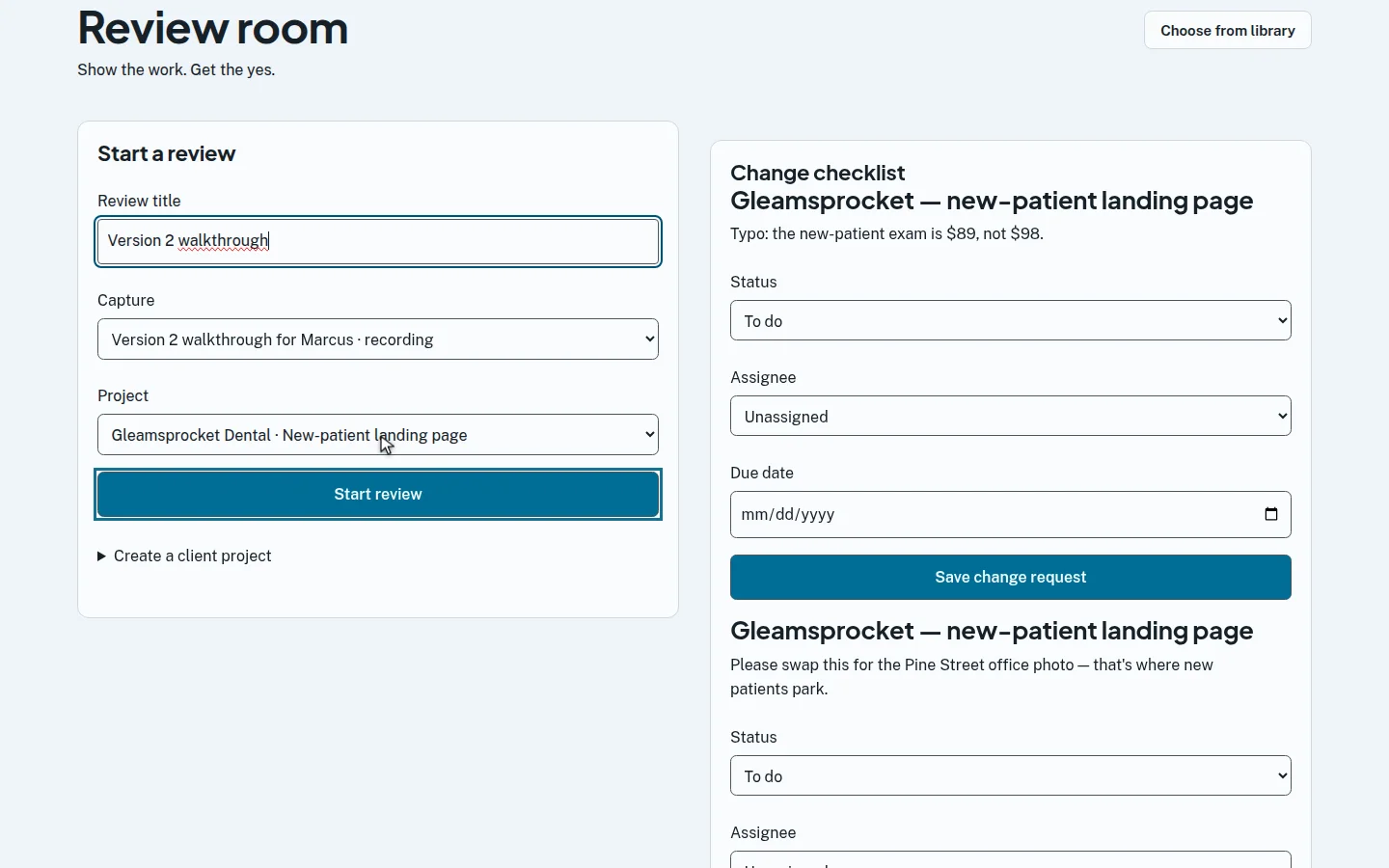
Under Start a review, give it a title, choose the capture, and pick the client's project. Then select Start review.
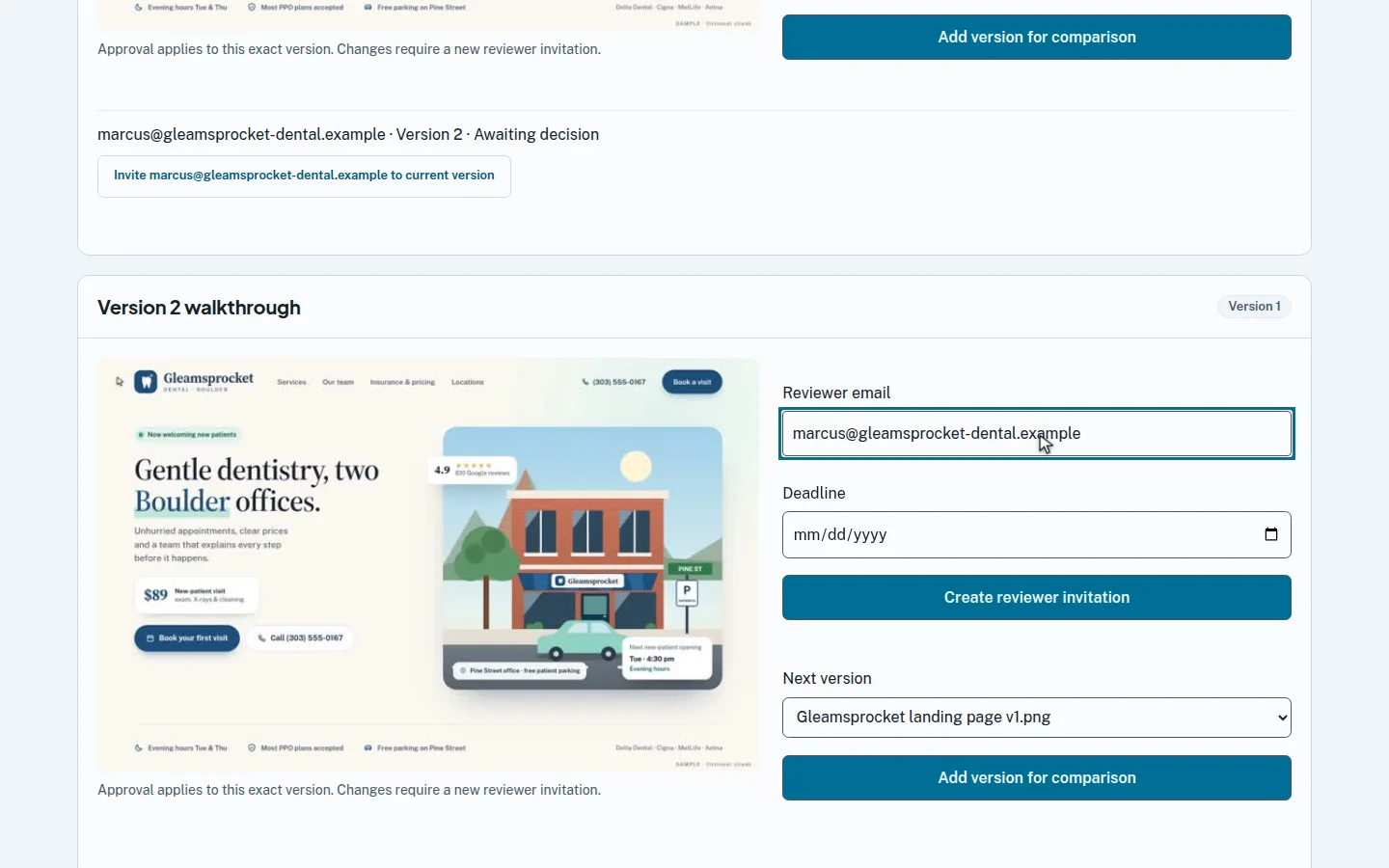
In the new review's row, select Invite a reviewer, enter your client's email and select Create reviewer invitation.
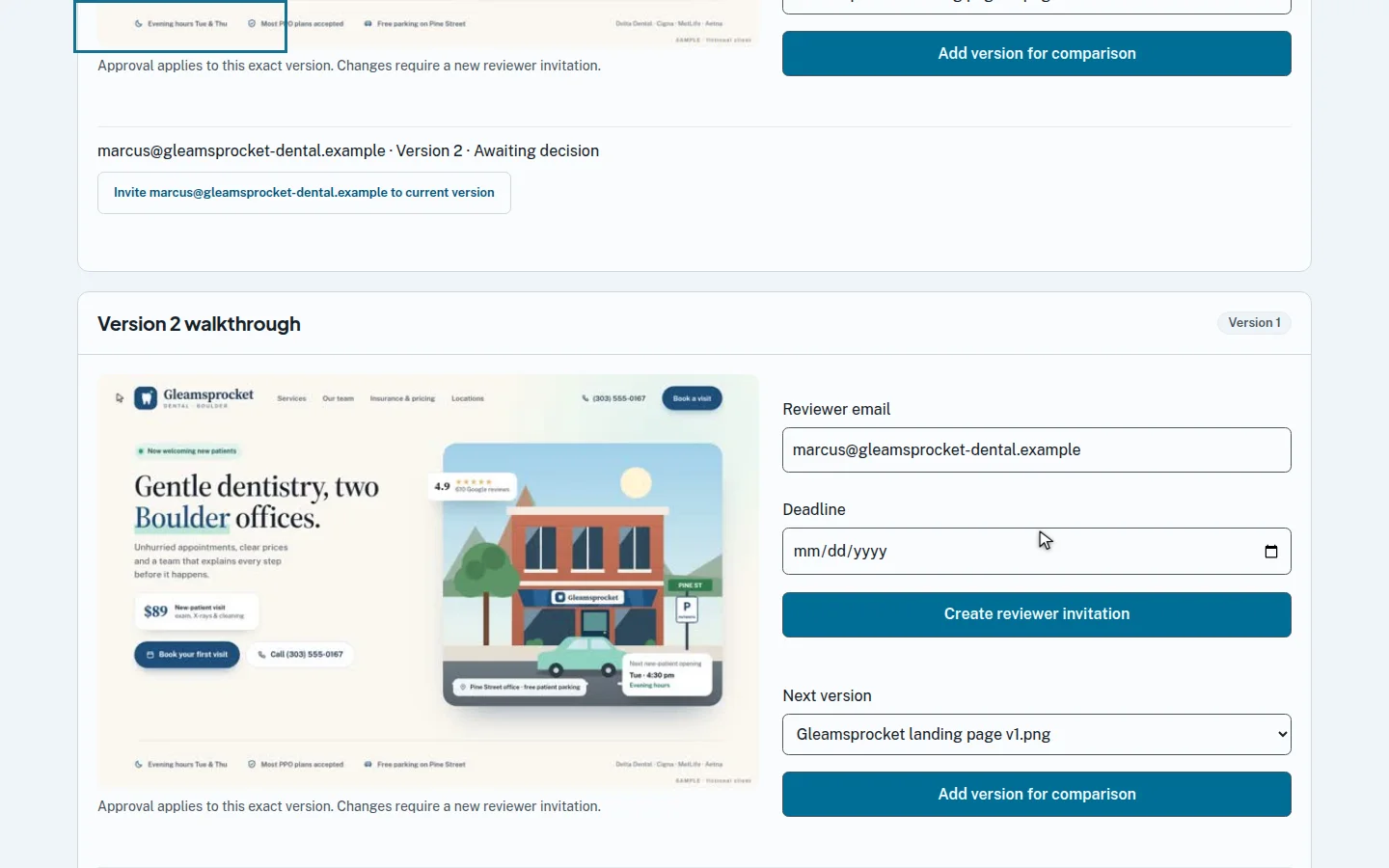
Select Copy reviewer invitation to send the link yourself. Your client doesn't need an account.
Steps
Start the review ▶ 0:07
In Reviews, under Start a review, enter a Review title, choose the Capture and the client Project, then select Start review.
Invite your client ▶ 0:16
Under Active reviews, open the review's row and select Invite a reviewer. Enter the Reviewer email and select Create reviewer invitation. Add a Deadline if you need a decision by a date.
Copy the link ▶ 0:22
Select Copy reviewer invitation and send it however you like. The link is personal to that reviewer.
Next steps
Updated 2026-11-03
client review approval link send for approval client feedback proofing