
How to find a capture and share its link in YakDrop
Every screenshot, recording and file you capture is saved to your library. Search it when you need to send something again, and copy a fresh link in one click.
Before you start
- At least one capture in your library
Transcript
Everything you capture with YakDrop is saved in your library, ready to share again.
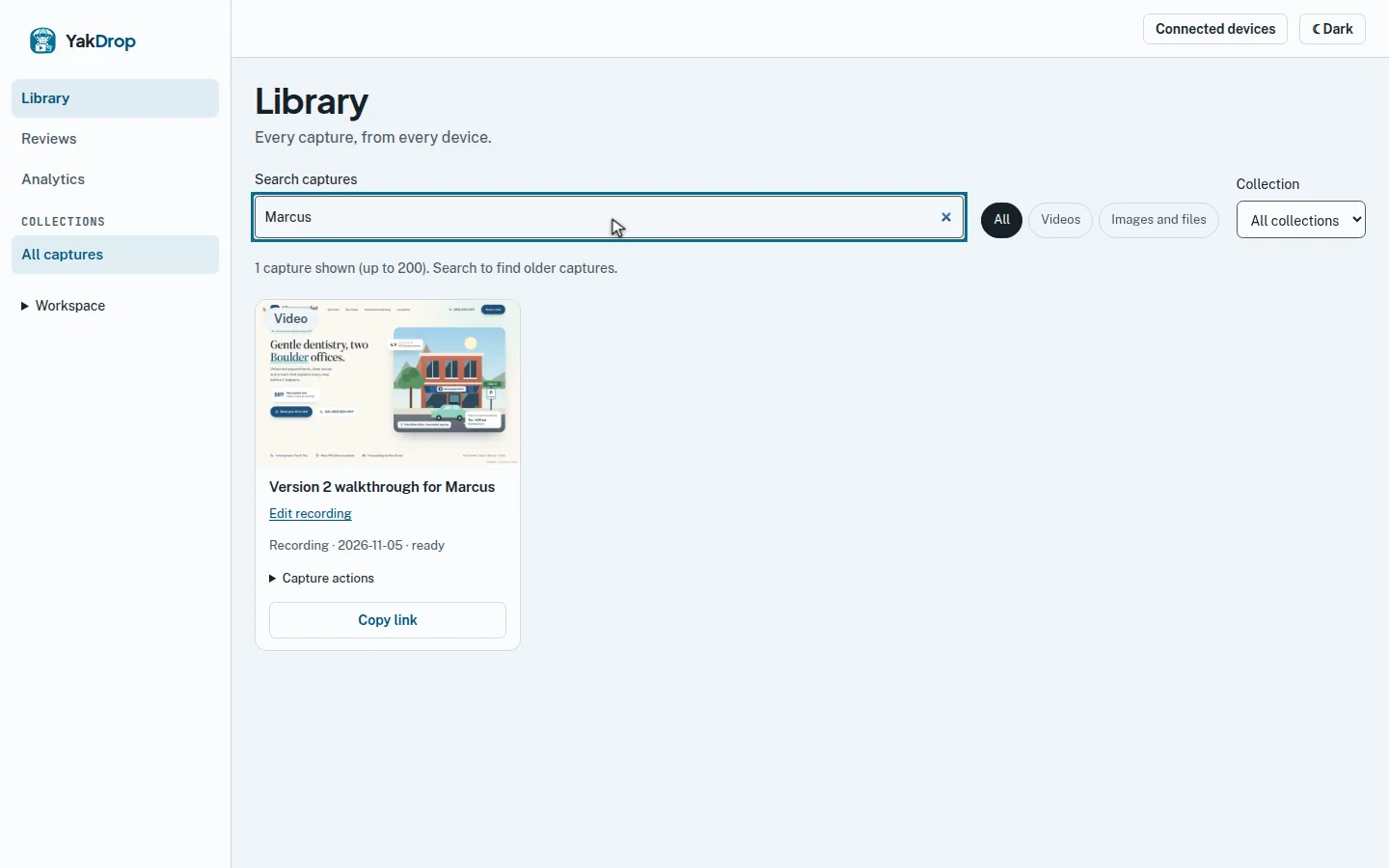
Type in Search captures. YakDrop matches titles, tags, collections, and even the words spoken in a recording.
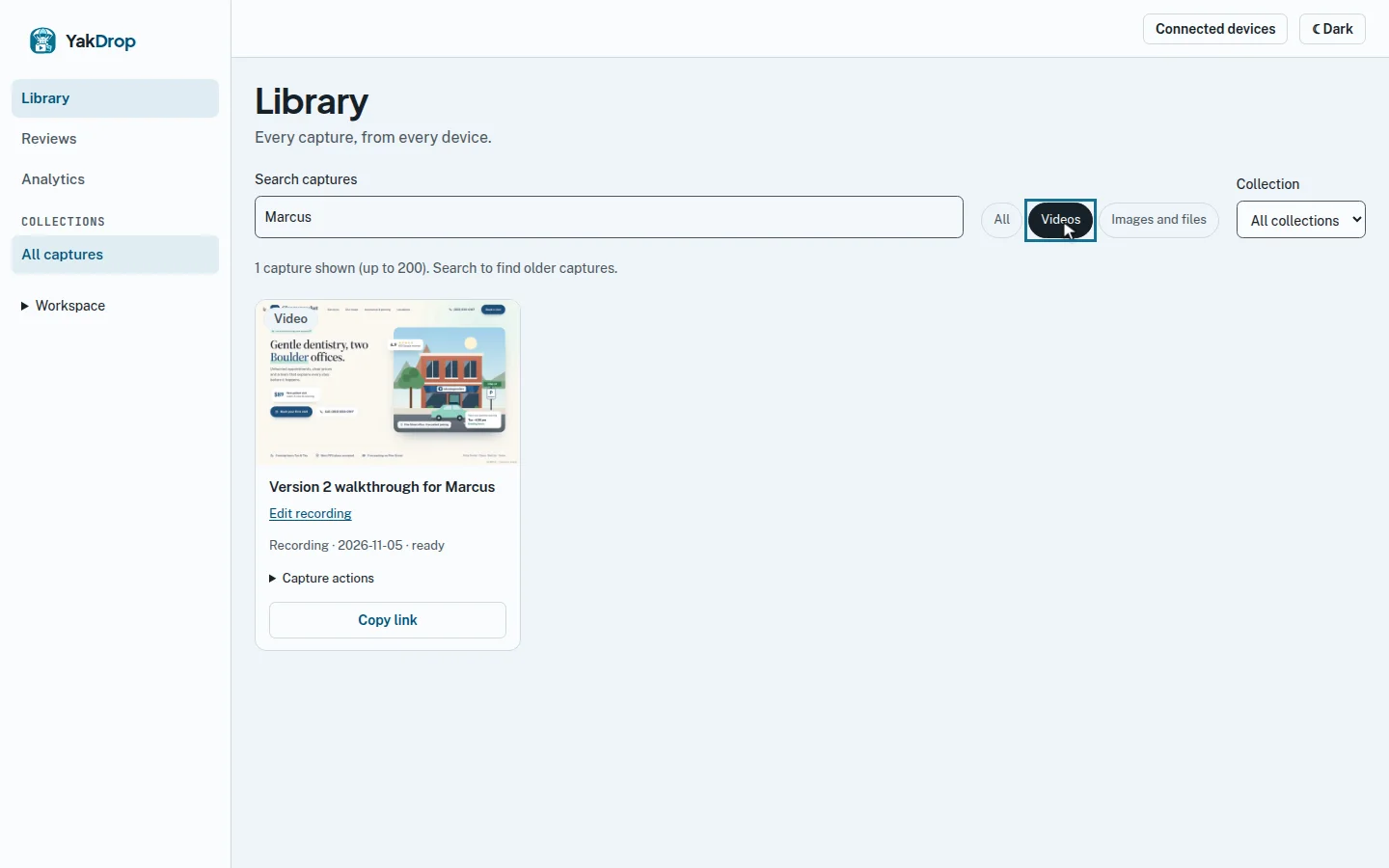
To see only recordings, select Videos.
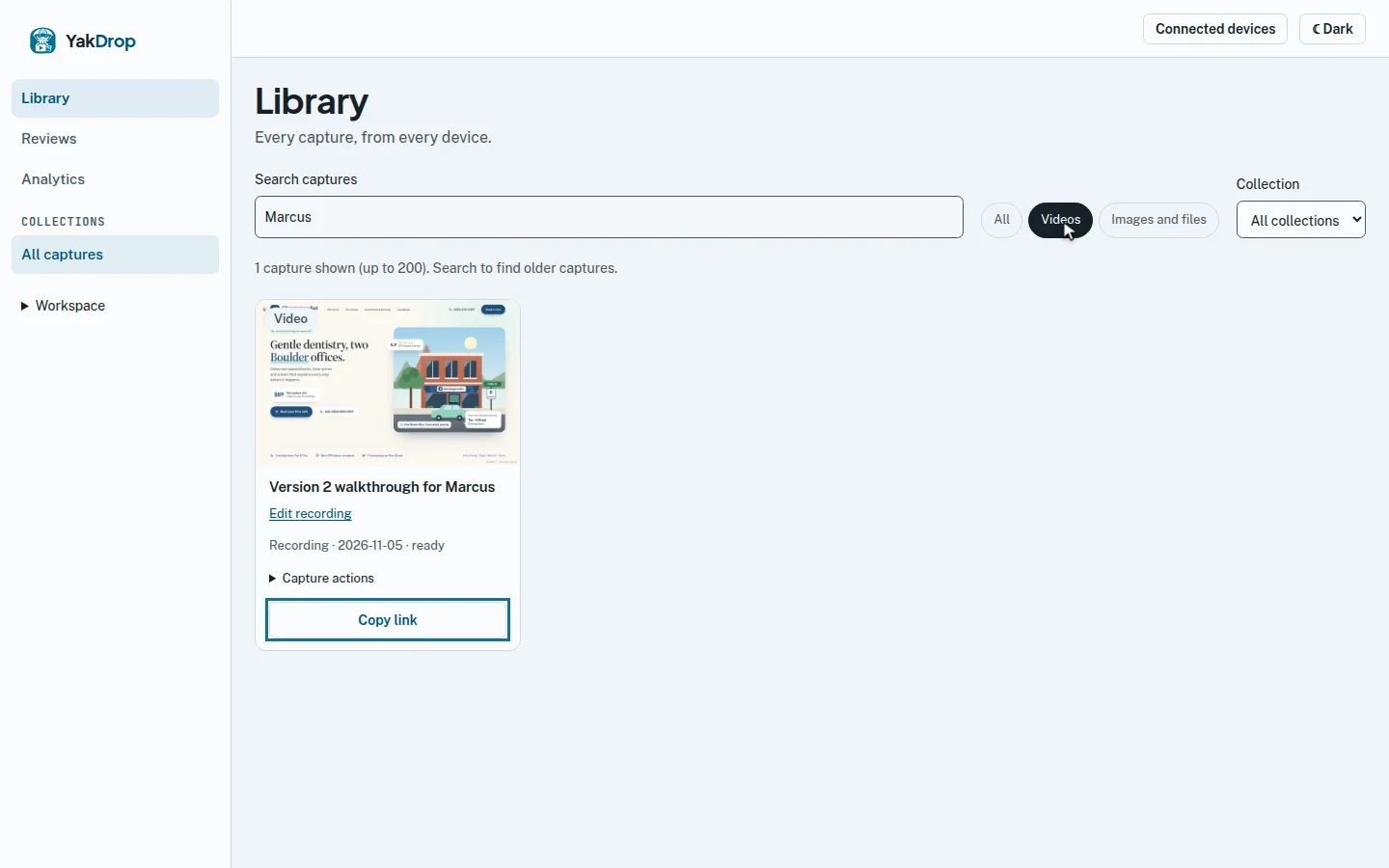
Then select Copy link, and paste it into your email or chat. The link opens straight to the recording.
Steps
Search your library ▶ 0:07
In Library, type in Search captures. Results match titles, tags, collections and the words spoken in recordings.
Filter by type ▶ 0:15
Select Videos to show recordings only, or Images and files for everything else.
Copy the link ▶ 0:18
On the capture's card, select Copy link, then paste it wherever you're talking with your client or team.
Next steps
Updated 2026-11-03
search captures copy link share recording screenshot library