
How to trim and caption a recording in YakDrop
Recorded a little too much, or need to fix what the captions say? Edit the recording in your browser instead of recording it again. YakDrop saves your edit as a new version and leaves the original untouched.
Before you start
- A finished recording in your library
Transcript
Shorten a recording or fix its captions, without recording it again.
In your library, open the recording's actions menu and select Edit recording.
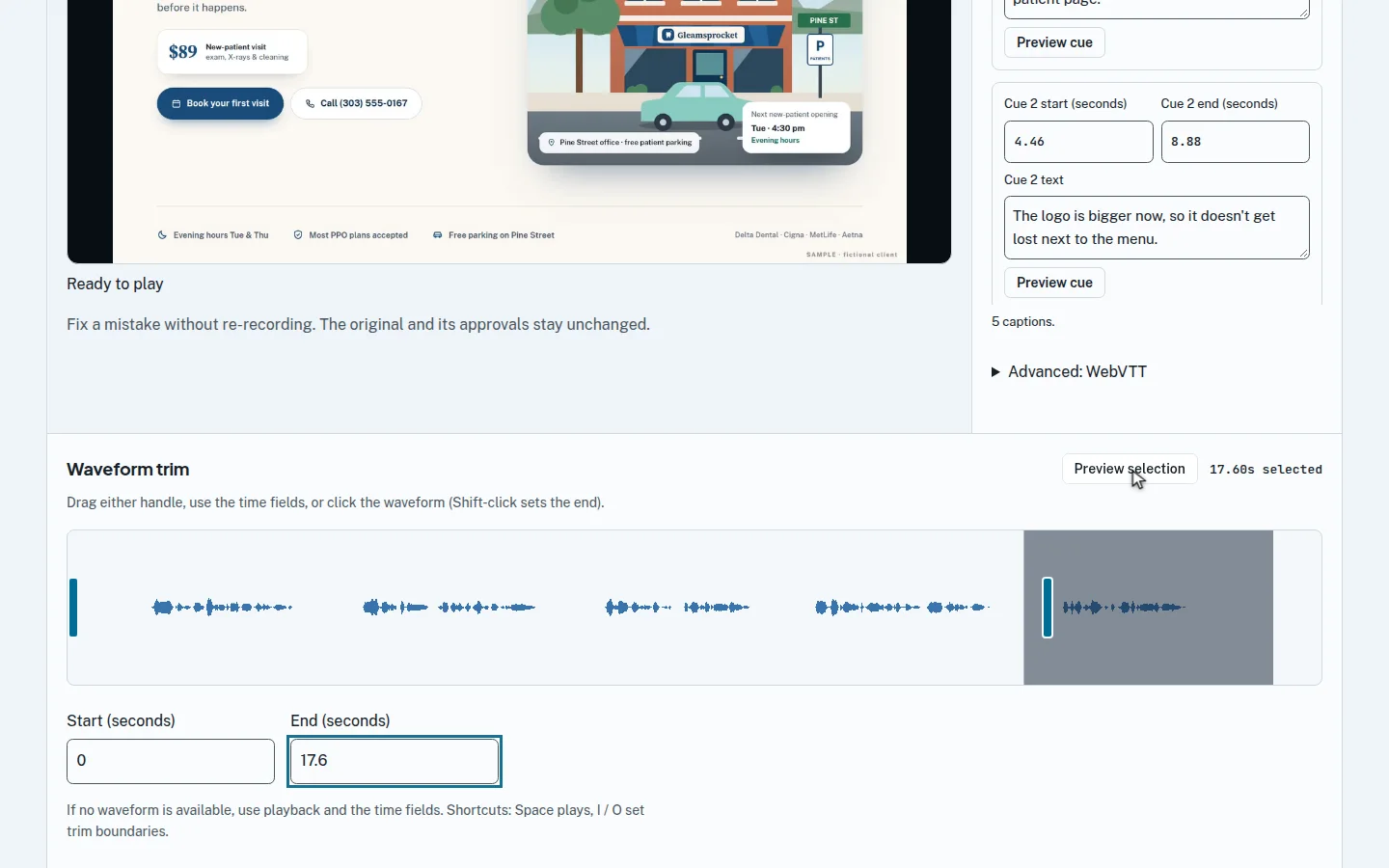
Under Waveform trim, set where the video should end. Here the last line goes, so it ends on the new photo. Select Preview selection to check it.
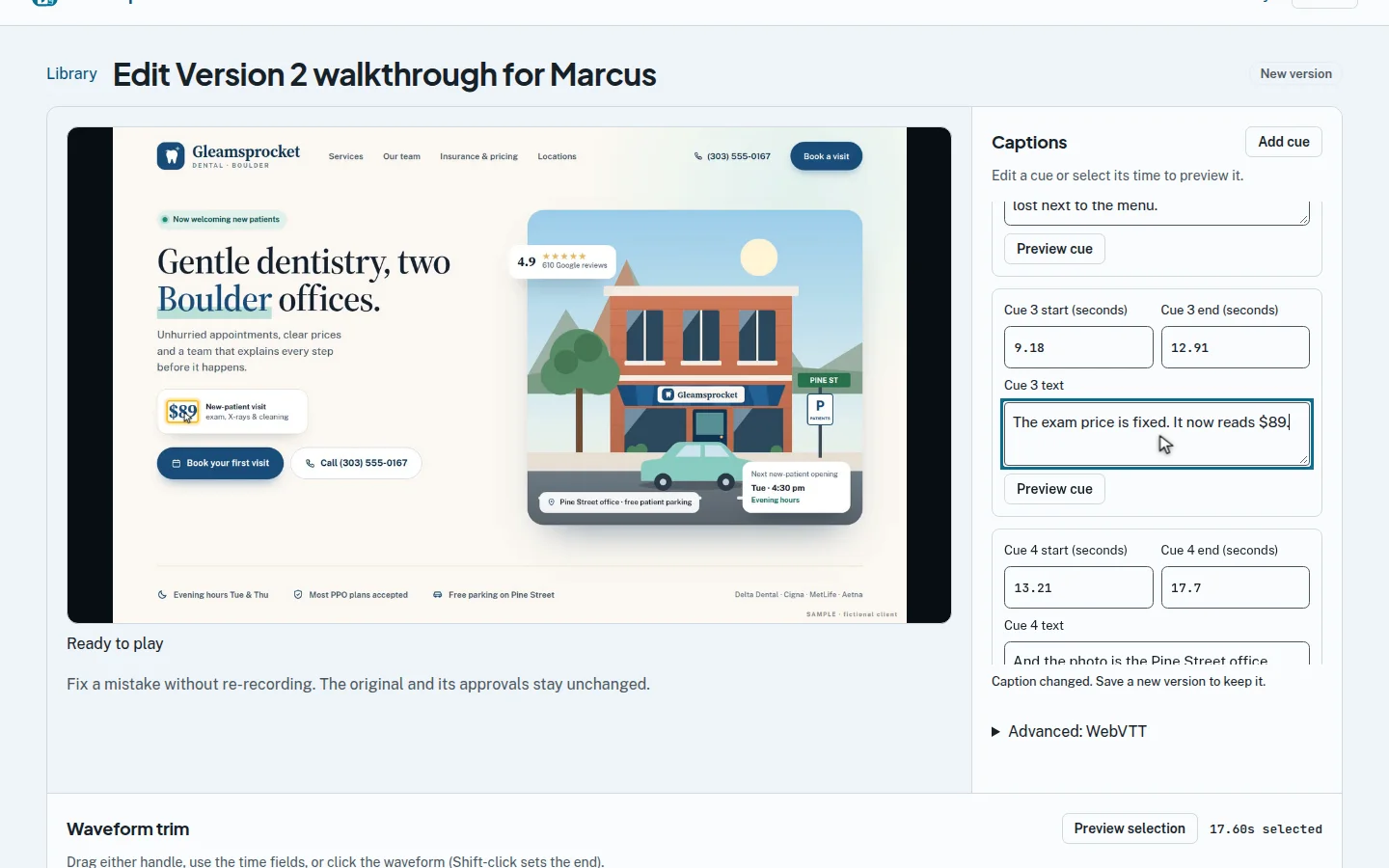
Under Captions, every line has its own cue. Select the one to fix, and correct its text.
Tick Save and upload this edit as a new version, then select Save new version. The original and its approvals stay unchanged.
Steps
Open the editor ▶ 0:06
In Library, open the ⋯ actions menu on the recording's card and select Edit recording.
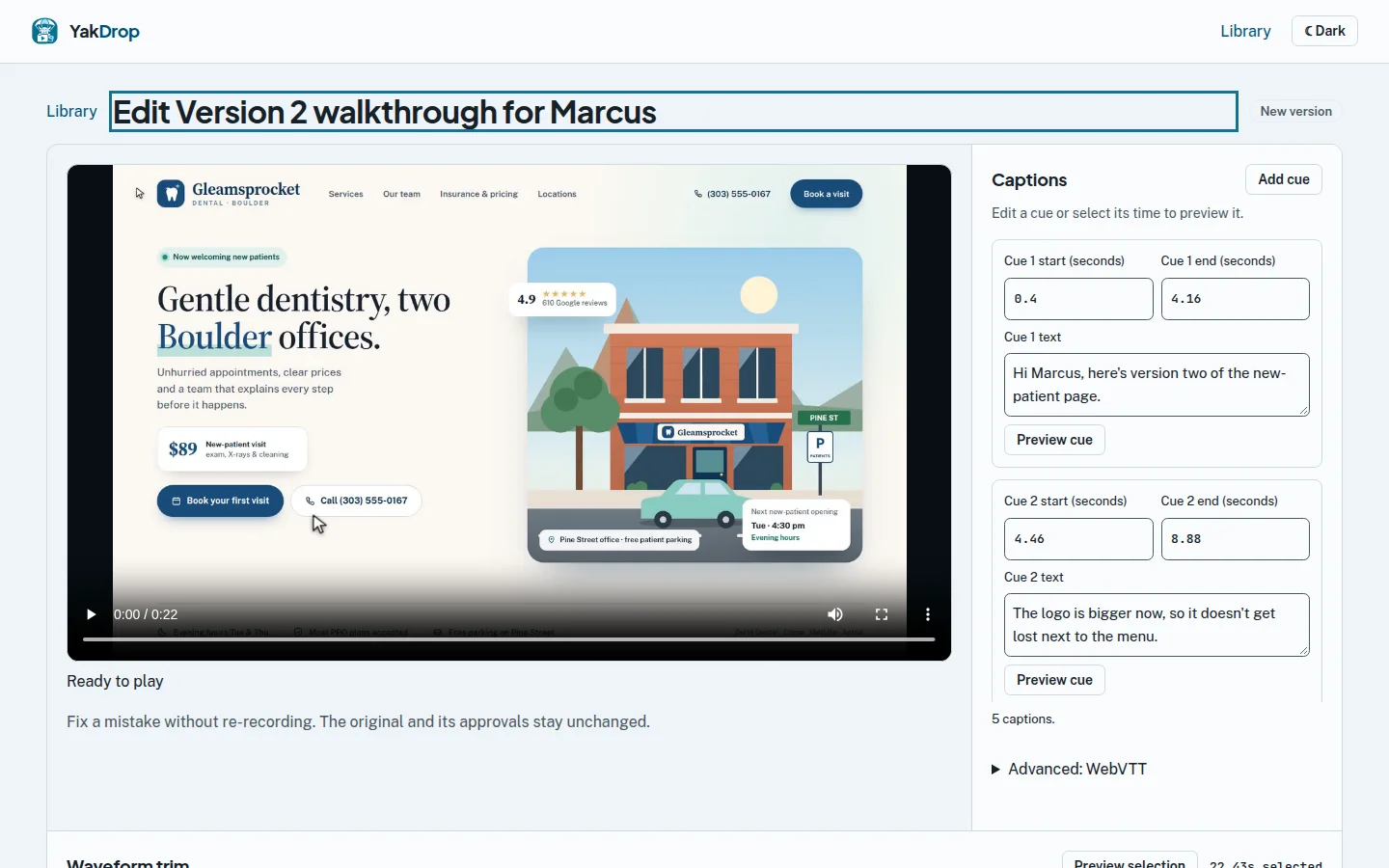
Trim the start or end ▶ 0:11
Under Waveform trim, drag the handles or enter Start (seconds) and End (seconds). Select Preview selection to watch just that part.
Fix the captions ▶ 0:21
Under Captions, edit any cue's text or times. Add cue adds a caption at the current playback time.
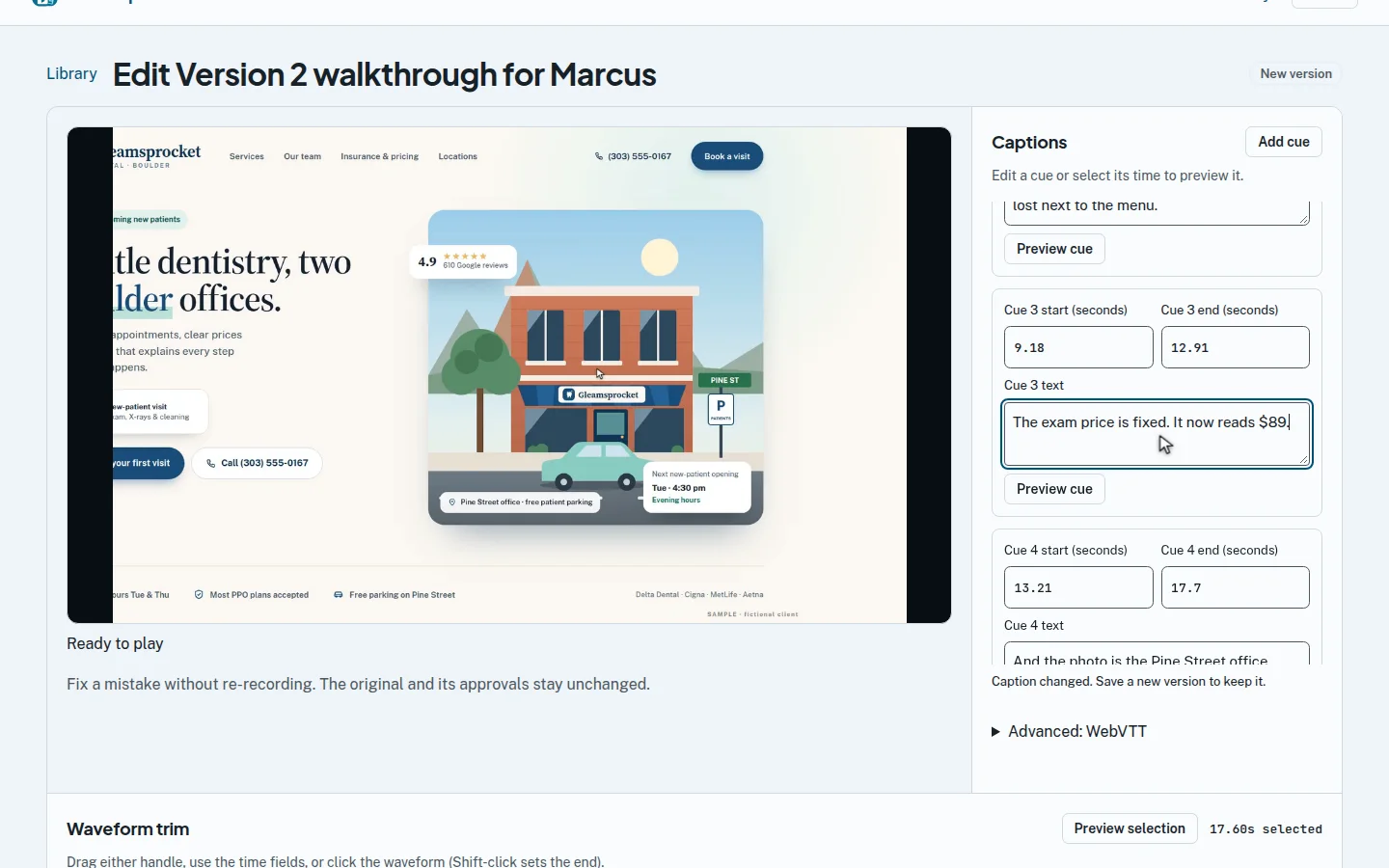
Save a new version ▶ 0:28
Tick Save and upload this edit as a new version and select Save new version. YakDrop prepares the edited video; you can return to your library while it finishes.
Next steps
Updated 2026-11-03
trim video cut recording edit captions subtitles shorten recording