
How to approve a version and download the certificate in YakDrop
When the work is right, approve that exact version. YakDrop records who approved it and when, and gives you both a signed certificate. An approval never carries over to a later version.
Before you start
- A review link for the current version
Transcript
When the work is right, approve it, and get a signed record of exactly what you approved.
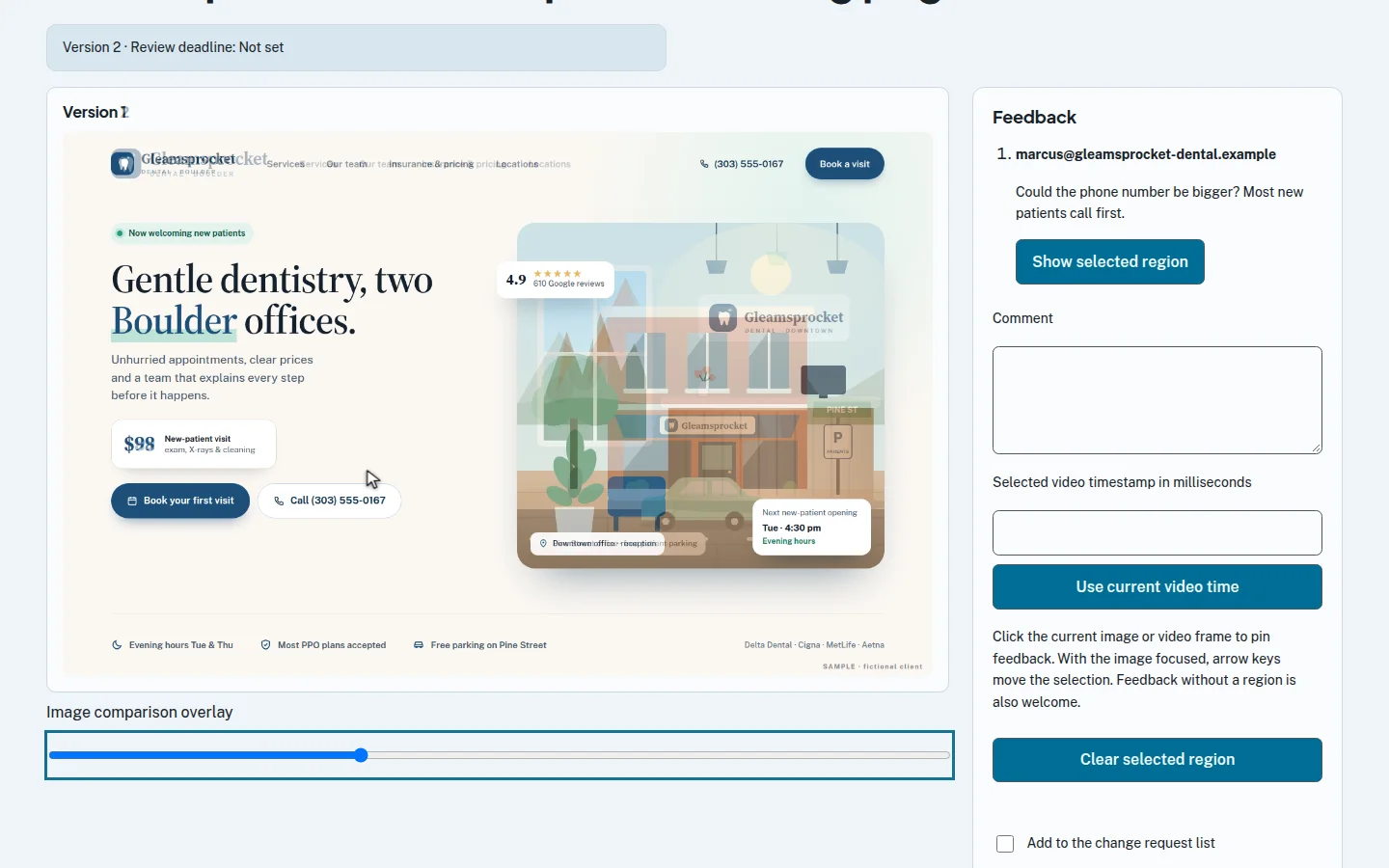
Drag the Image comparison overlay slider to check version two against version one.
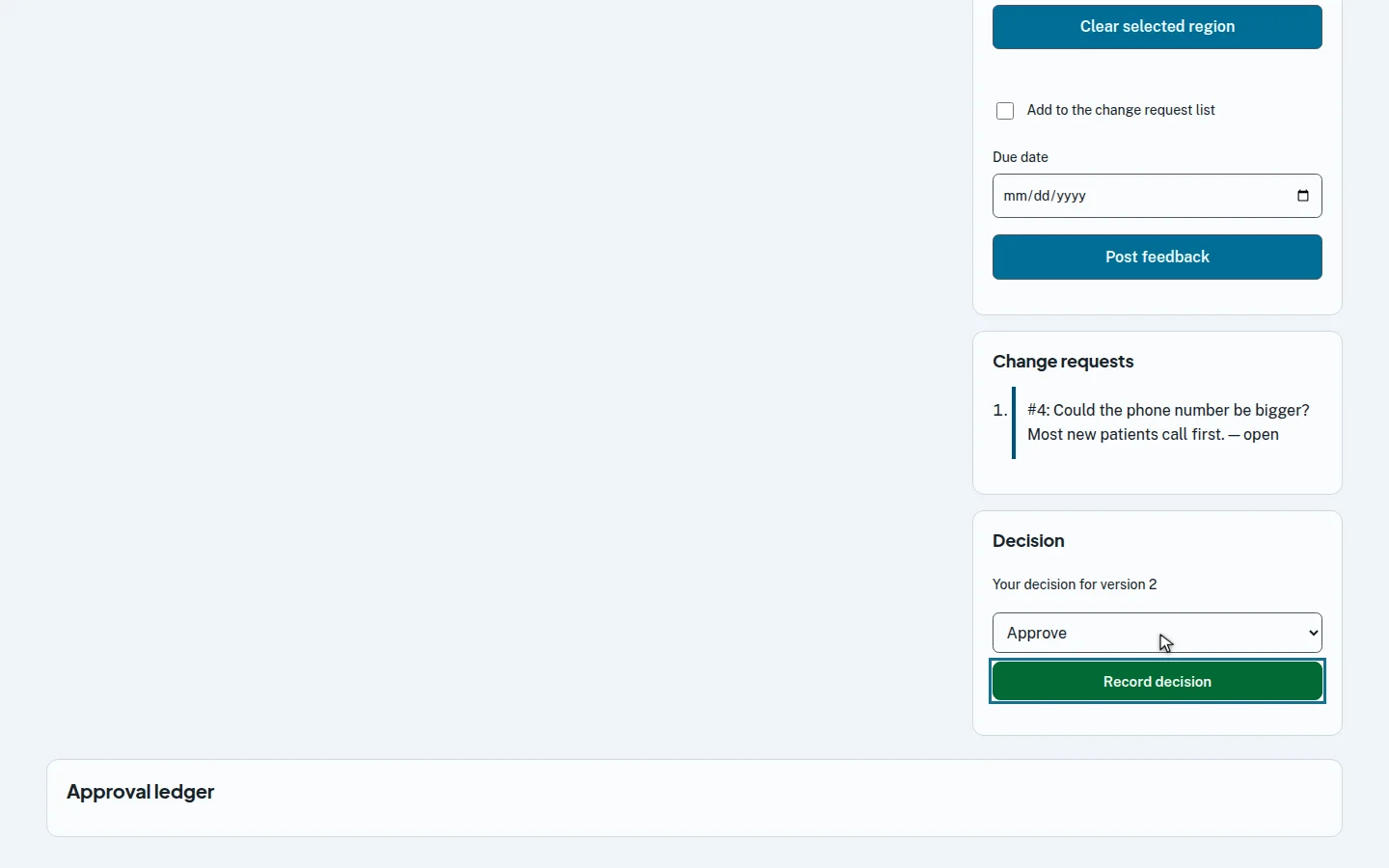
Under Decision, select Approve version 2.
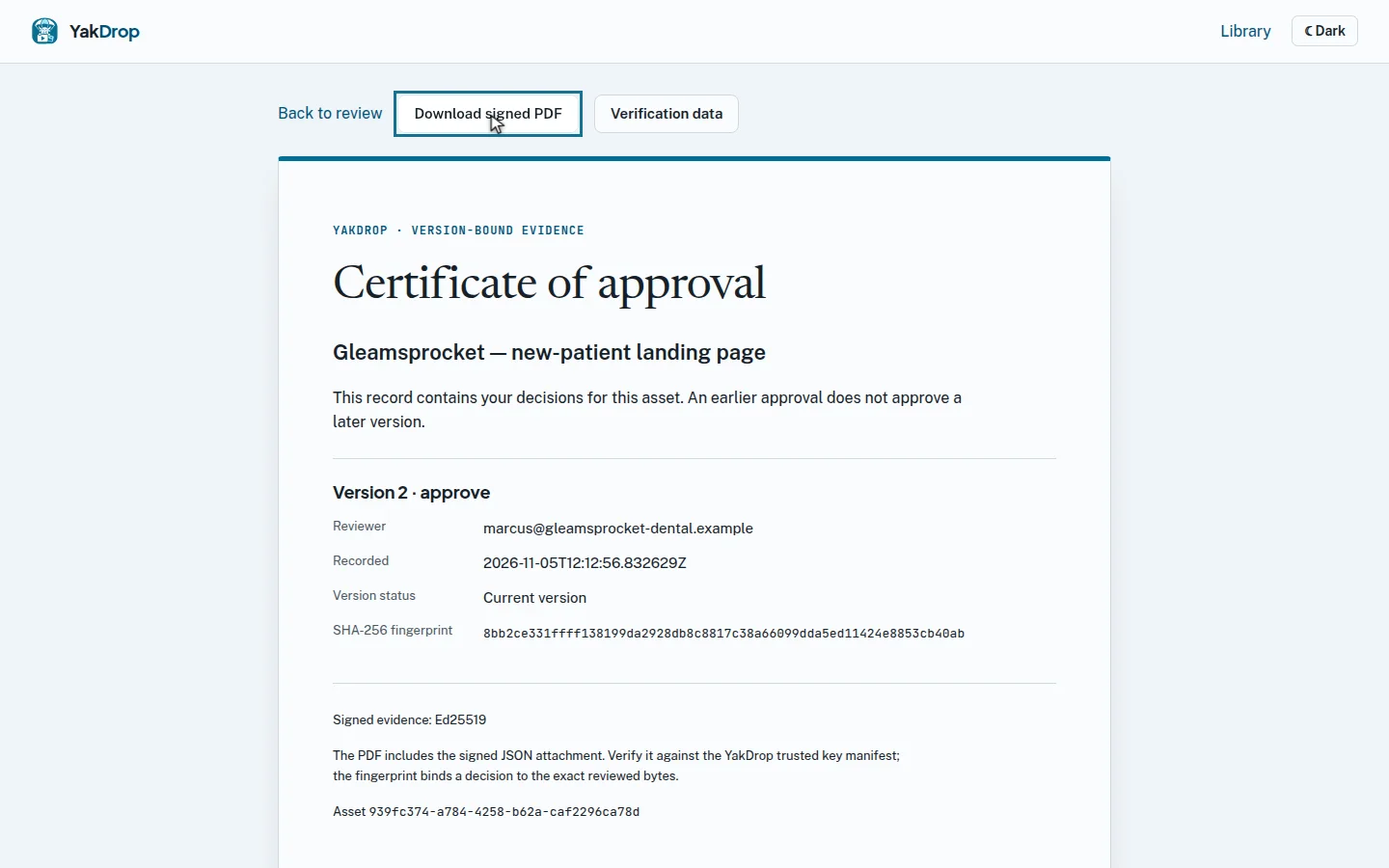
Then open Approval certificate. It shows who approved which version, when, and a fingerprint of the exact file. Select Download signed PDF to keep a copy.
Steps
Compare the versions ▶ 0:07
Drag Image comparison overlay to fade between the earlier version and this one.
Record your decision ▶ 0:14
Under Decision, select Approve version 2 (or Request changes if it still needs work).
Get the certificate ▶ 0:18
Select Approval certificate at the top of the review, then Download signed PDF.
Next steps
Updated 2026-11-03
approve design sign off approval certificate client approval